
You have the choice of exporting Timesheets as a CSV, PDF or HTML.
Go into Timesheets and use the filters and date range to find the Timesheets you would like to export.
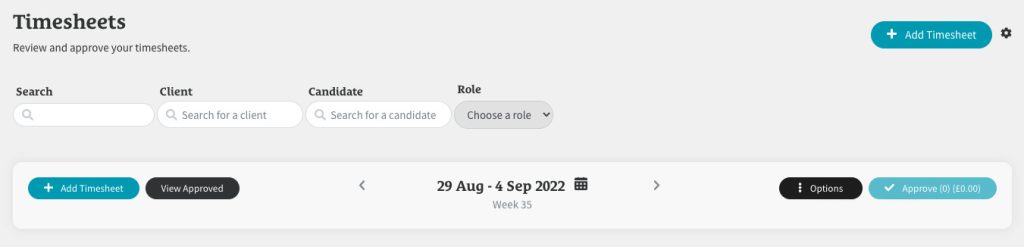
You can filter by Client, Role and/or Candidate.
If you’d like to export all the Timesheets for all the Clients and Candidates in your chosen date range, leave all the filters blank.
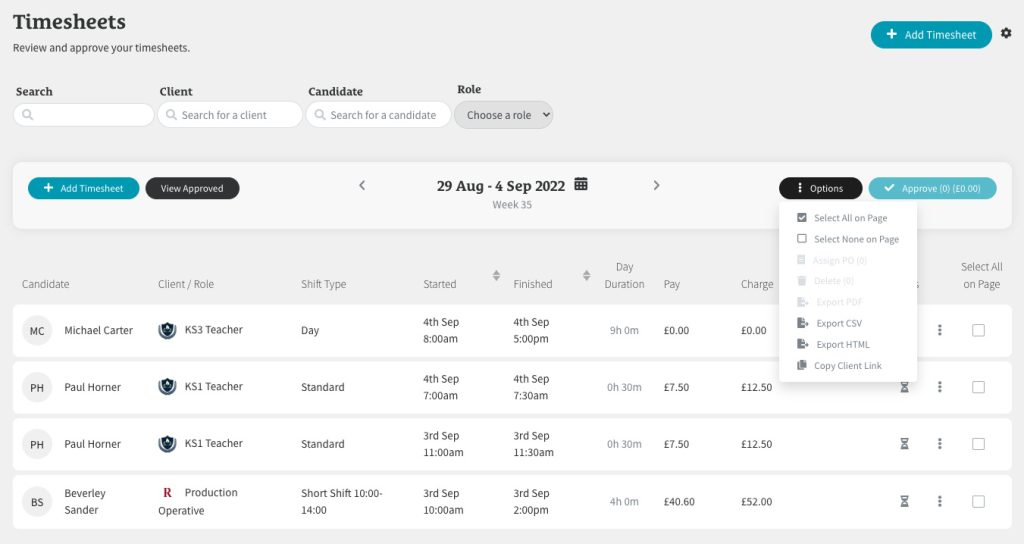
Once you’ve chosen your Timesheets to export, click on the ‘Options’ button next to the date range and select how you’d like to export them.
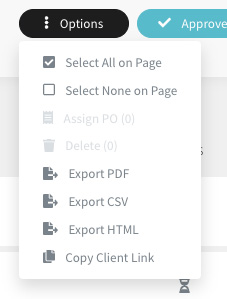
If you click on ‘Export PDF’ or ‘Export CSV’, a the file will be exported and downloaded to your computer. If you click ‘Export HTML’, a new tab will open showing the Timesheets you’ve selected.